
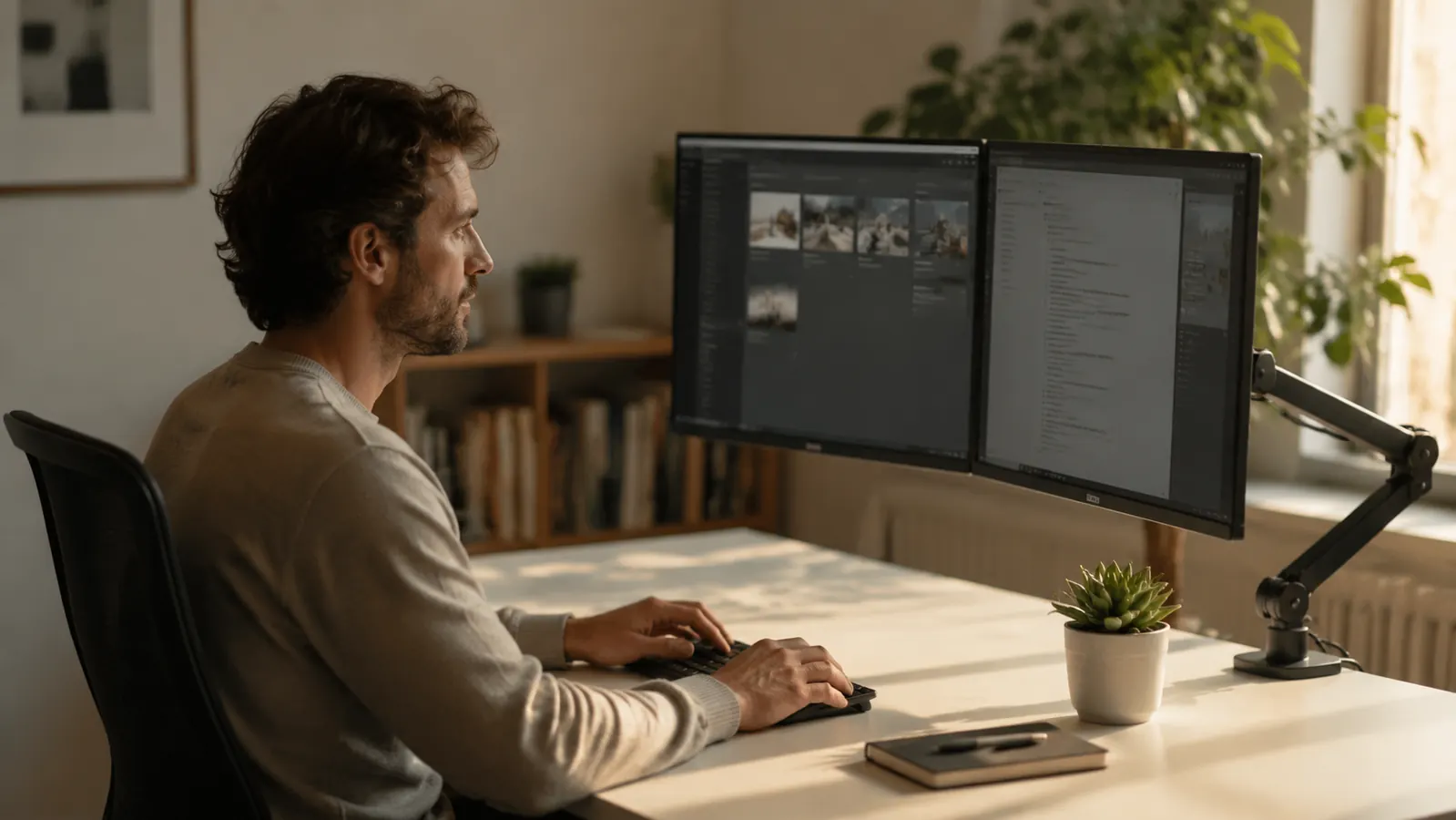
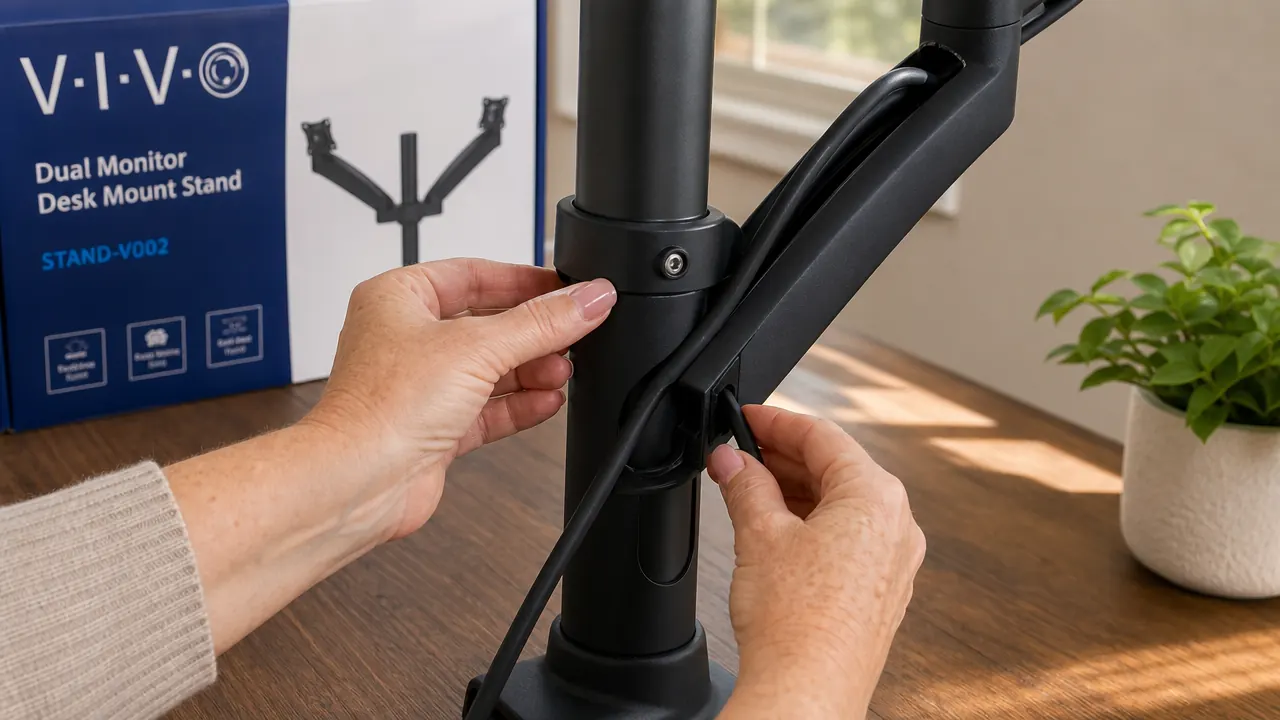
I want to tell you something I wish I had read before I unboxed the VIVO Dual Monitor Desk Mount: cable routing comes first. Before the monitors. Before you touch the tilt knobs. Before anything. I found this out the hard way after I had both 27-inch screens mounted, stepped back feeling pleased with myself, and realized all four cables were dangling loose underneath the arms with no reasonable way to thread them through the channels without taking everything back apart. That cost me forty-five minutes. The rest of the review is built around moments like that one, because the product listings for this mount are full of stars and light on practical detail.
The VIVO dual mount, ASIN B009S750LA, is budget-friendly at today's price. It holds two monitors up to 30 inches and up to 22 pounds each. I tested it with two Dell 27-inch IPS monitors, each around 15.5 pounds without the factory stand. That puts me well inside the rated limits but closer to the upper end than most reviewers seem to be, and the experience at 27 inches is meaningfully different from the experience at 24. If you are running 27s, keep reading. This review is specifically for you.
The Quick Verdict
A genuinely capable budget mount that requires patience during setup and rewards you with a clean, stable dual-screen workspace. The installation quirks are real, and wobble is more noticeable at 27 inches. Worth it for most home office setups. Not ideal if you reposition screens often or if your desk has shallow clearance near a drawer.
Amazon Check Today's Price →Two 27-inch monitors on factory stands can eat your entire desk. One mount changes that for a budget price.
The VIVO dual monitor arm has over 60,000 Amazon ratings and fits monitors up to 30 inches. Check today's price before buying anywhere else.
Amazon Check Today's Price on Amazon →What the Installation Instructions Leave Out
The instruction sheet is a single folded page with small diagrams and minimal text. It covers the basic assembly sequence, but it does not tell you three things I consider essential. First: route all your cables through the arm channels before you attach the VESA brackets to your monitors. If you skip this step, you will either have visible dangling cables or you will spend an hour undoing your work. Second: finger-tighten the arm pivot bolts loosely before you hang any monitors, then snug them while holding the arm at the angle you want. If you tighten them fully with the arms pointing straight out and then try to angle them differently, you are fighting a lot of resistance. Third: the lower jaw of the c-clamp extends about two inches below the desk surface. If your desk has a shallow drawer near the back edge, measure before you clamp. On my writing desk, the drawer sat about 2.5 inches below the surface and there was just barely enough clearance. If the drawer had been even a half-inch higher, I would have had a problem.
With those three things understood, the assembly itself is logical and doable alone. I started from zero and had both monitors in position in about two hours, including the time I lost to the cable routing mistake. A second attempt, knowing what I know now, would take about 45 minutes. The tools you actually need are a Phillips screwdriver to attach the VESA brackets to your monitor backs, a small Allen wrench (included, though it is genuinely tiny, and I swapped it for a proper hex key set after about five minutes), and patience with the final height and tilt calibration.
One more thing the listing does not mention clearly: this is a friction-joint arm, not a gas-spring arm. Those are two completely different systems. A gas-spring arm uses internal spring tension to let you float a monitor up or down with one finger and have it stay wherever you let go. A friction arm uses tightened bolts. You set the tension you want, and the monitor stays there until you loosen the bolt and move it. For a home office where you set your monitors once and use them in the same position every day, friction is perfectly fine. If you want to pull a screen toward you for reading and push it back for calls multiple times a day, friction will feel clunky. Know which category you are in before you buy.
The Clamp and What It Does to Your Desk
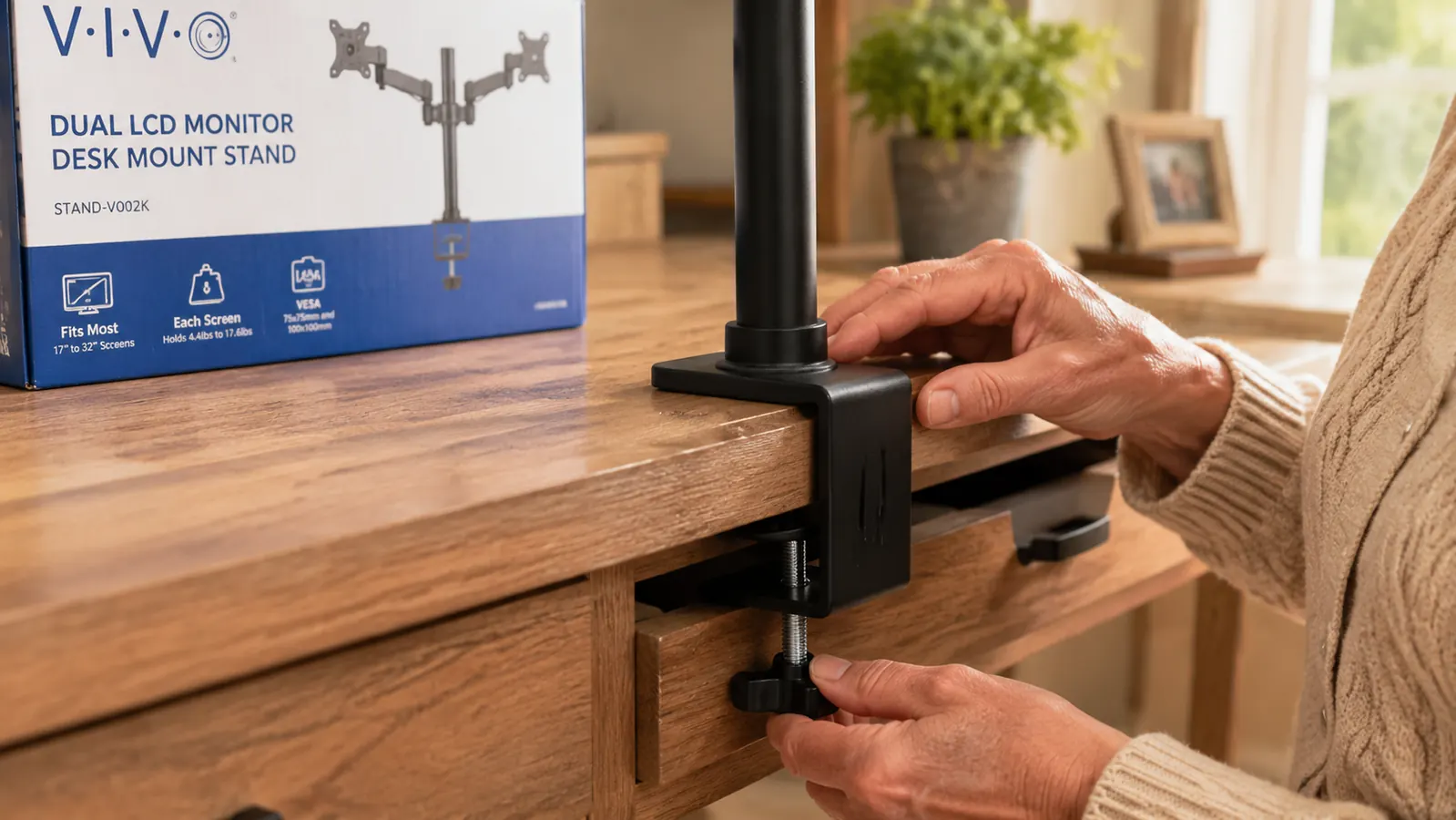
The c-clamp on the VIVO is the business end of this whole setup and it deserves more attention than most reviews give it. It grips the rear edge of your desk with two jaws: one on top, one below. A large central bolt squeezes them together. The clamp is heavy cast steel and it grips with real authority. On my desk, a 60-inch birch-veneer surface about 1.25 inches thick, it grabbed cleanly with no slipping or rocking. I was initially worried about leaving marks. After several months, there is a faint impression in the veneer surface where the upper jaw sits, maybe a millimeter deep. Not visible unless you move the mount and look for it, but worth knowing if you have a desk surface you care deeply about. A thin rubber pad between the clamp and the desk would prevent this.
The clamp accommodates desk edges from about 0.4 inches to 3.1 inches thick according to the spec sheet, and that matched my experience. Most standard home office desks fall in that range. Where the clamp can fail you is if your desk has a curved or beveled back edge rather than a flat one. A rounded edge gives the clamp jaw less contact surface, and at heavier monitor weights that edge geometry matters. My desk has a square back edge, which is ideal.
There is also a grommet mount option in the box, for desks with a pre-drilled grommet hole. I did not use it. Most home desk setups do not have a grommet hole, so most people will be on the clamp. But if you do have a grommet hole, that option provides a slightly more stable base because the connection point is at the center of the desk mass rather than the edge.
How 27-Inch Monitors Behave Differently Than You Expect
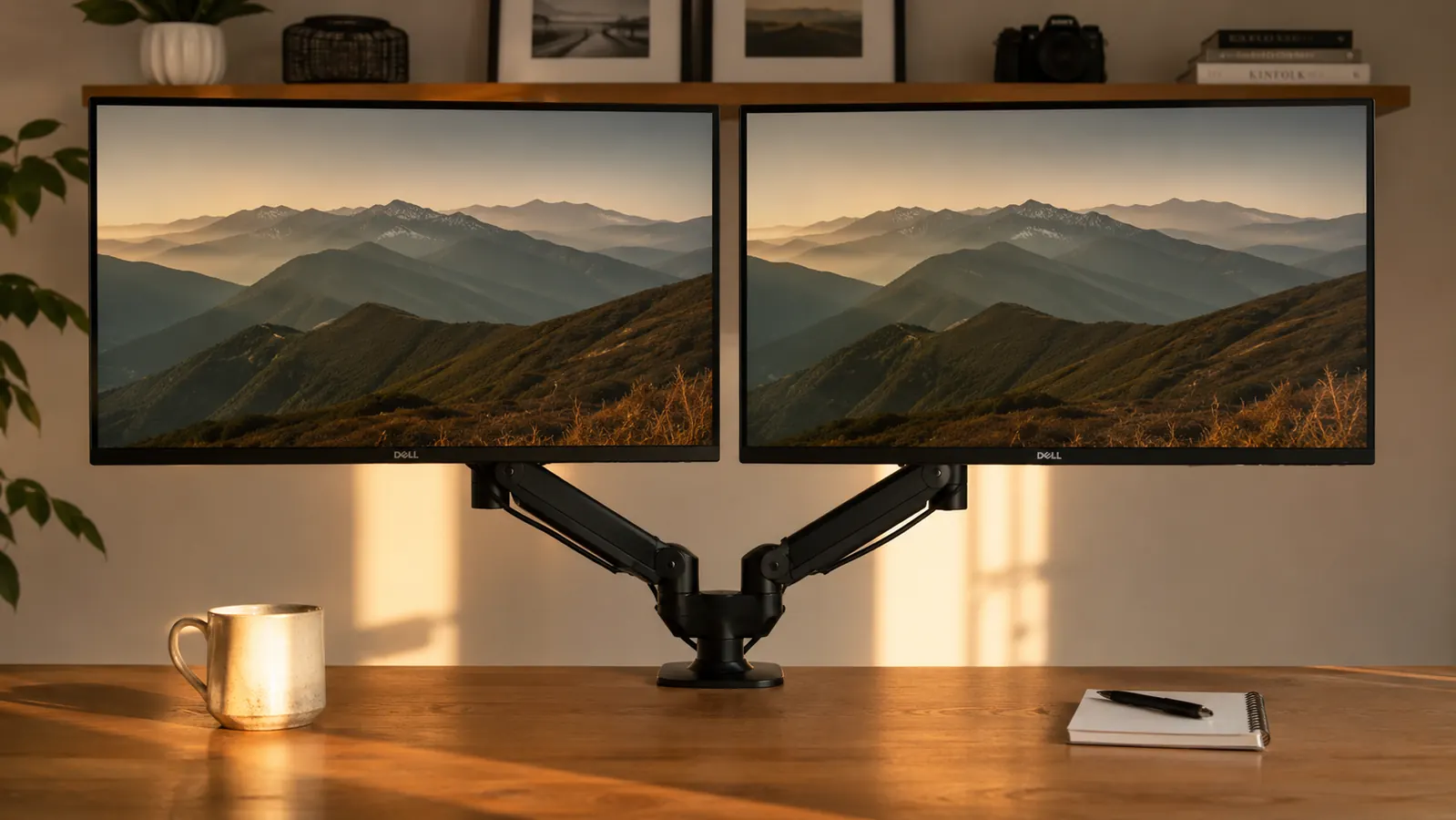
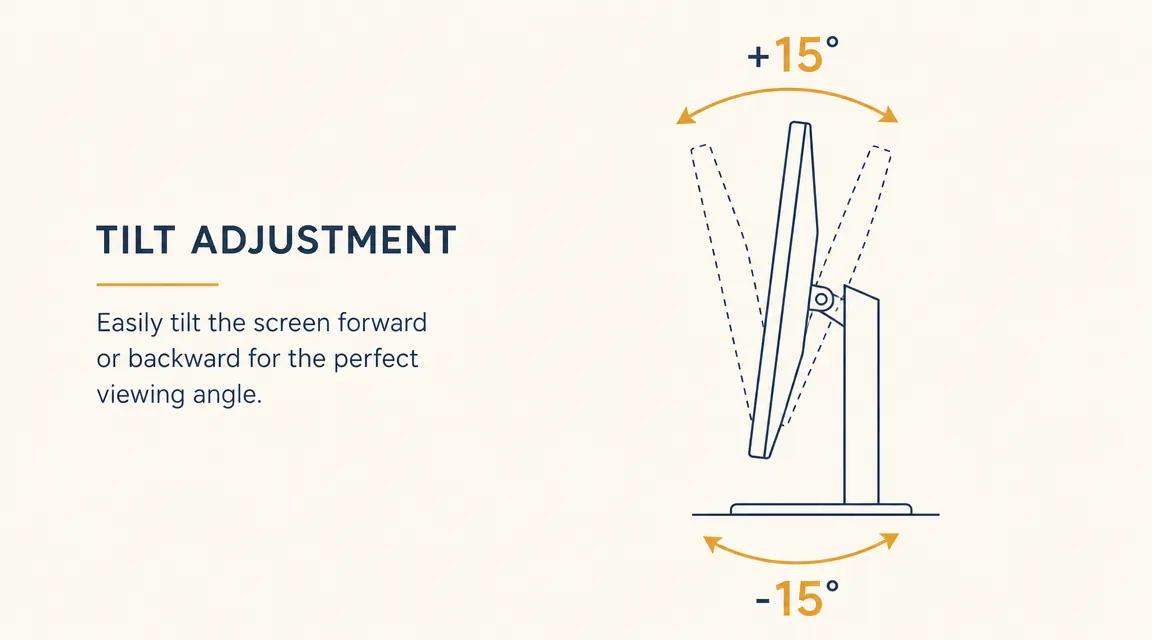
Here is the part I did not see in any other review I read before buying. At 27 inches and roughly 15.5 pounds per monitor, the arms behave noticeably differently than they do at 24 inches and 12 pounds. The weight at the end of a fully extended arm creates more lever pressure on the tilt joint. That means you need to tighten the tilt friction bolt more than the instructions suggest to keep the monitor from slowly nodding forward over hours of use. I went through about a week of finding my screens a degree or two more tilted downward than I had left them, before I figured out that I needed to add another half-turn to each tilt bolt.
Once I got the tension right, the drift stopped completely. But it took experimentation. If you are mounting 27-inch screens, expect to go back and fine-tune the friction bolts once after your first full workday. The arms are not inadequate for 27 inches. They just need more tension than you would use for smaller, lighter panels, and the instructions do not calibrate their guidance for size.
The wobble question at 27 inches also deserves a straight answer. Yes, there is wobble. When I type at a moderate pace, I can see the monitors shimmy slightly. When my dog Cleo trots across the hardwood floor nearby, they shiver more than I would like. This is not dangerous and the monitors have never felt remotely at risk of falling. But it is more visible movement than the product photos suggest, and it is more noticeable at 27 inches than it would be at 24. People with rock-solid hardwood desks on a concrete floor will see less of this. My setup is a veneer desk on a carpeted floor in a spare bedroom, which is not ideal for vibration dampening.
I fought the assembly for two hours the first time. If I had known to route the cables before mounting the monitors, it would have been 45 minutes. That one step is the whole installation learning curve.
VESA Compatibility: Almost Universal, With One Exception
The VIVO mount uses standard VESA 75x75mm and 100x100mm patterns, which covers the overwhelming majority of monitors sold in the last ten years. Both of my Dells were 100x100, and the brackets attached without fuss. However, some curved monitors and a small number of ultrawide panels use non-standard mounting patterns or have curved backs that conflict with the flat VESA bracket. Before you order, flip your monitor over and check the four screw holes at the back. They should form a square. If you do not see them, your monitor may not be VESA compatible, which is not specific to the VIVO but is worth knowing. Some monitors also have the factory stand base covering the VESA holes, requiring you to remove the stand before you can see them.
One thing I genuinely appreciated: the VESA bracket screws are M4 bolts and the arm ships with a small assortment. My monitor manuals specified M4 screws for the VESA mount, and the ones in the VIVO hardware bag were a match. I have heard of mounts shipping with wrong-thread hardware. That was not an issue here.
Cable Management: Better Than It Looks, Worse Than It Could Be
The arms have a channel running their length on the underside for routing cables. In practice, the channel holds cables well once they are in, but feeding thick cables through before the monitor is attached requires some patience. The channel is not a closed tube. It is more of a groove with a narrow opening, and a stiff DisplayPort cable or a thick power cable does not slide through smoothly. I found it easiest to use a piece of painter's tape to hold the cables loosely along the arm while I threaded them, then press them into the channel groove once I had enough slack to work with.
Once routed, the cables are invisible from the front of the setup. From the back they are visible if you look, which is fine. I am not building a data center. The goal for my home office was that someone walking into the room would see clean, calm screens, not a tangle of wires, and the cable routing delivers exactly that. The back-of-desk situation is not perfect but it is perfectly acceptable.
What I Liked
- Clears both factory stands off the desk surface, reclaiming more space than most people expect
- Steel construction feels genuinely heavy-duty for the price point
- Clamp grips standard desk edges securely with no slipping in months of use
- Cable channels keep the front-facing view completely clean
- Both VESA patterns (75x75 and 100x100) included in the bracket hardware
- Grommet mount option in the box for desks that support it
Where It Falls Short
- Friction joints, not gas-spring, so repositioning requires a hex wrench, not a finger
- Cable routing must happen before monitor mounting or you will undo your work
- Lower clamp jaw needs at least two inches of clearance below your desk edge
- Wobble is visible at 27 inches on any desk with a little flex in the surface
- Tilt friction bolts need extra tightening for heavier 27-inch panels, instructions do not say this
- The included hex wrench is functional but too small to use comfortably for long
What I Compared It Against
I looked seriously at the Ergotron LX Dual before choosing the VIVO. The Ergotron is a better arm in most measurable ways: gas-spring movement, a more refined finish, a longer warranty, and a reputation that has held up over decades of office use. It also costs roughly five to six times as much. If you reposition your monitors frequently throughout the day, the Ergotron's one-finger float movement is genuinely worth paying for. If you set your monitors once and use them at the same position every day, you are buying a feature you will never use.
There is a middle tier worth knowing about: mounts in the mid-range from brands including Mount-It, Vari, and North Bayou. Some of these offer gas-spring on one arm or both at a price in the upper part of that range. If you like the idea of occasional effortless repositioning but the Ergotron price stings, that tier is worth a look. I went with the VIVO because at a low price point the cost of being wrong was low. It turned out not to be wrong. But I would not dismiss the mid-tier options for people who know they want more flexibility. My full comparison between the VIVO and the Ergotron LX Dual is in the side-by-side comparison article if you want the detailed breakdown.
Who This Is For
The VIVO is the right choice for a home office worker who has a consistent daily setup, uses monitors between 22 and 27 inches, and wants both screens at proper eye level without paying for gas-spring movement they will rarely use. Remote workers, freelancers, students, retirees running a side business from a spare bedroom. Anyone who currently has two monitors sitting on factory stands eating desk space and putting their necks at a bad angle. If you fall into that description and your desk has a standard square back edge with enough clearance beneath it, this mount will serve you well for years. I also have a step-by-step guide on how to set up dual monitors at home ergonomically if you want help positioning everything correctly once the arm is up.
Who Should Skip It
Skip the VIVO if your monitors are larger than 27 inches or heavier than 18 to 19 pounds each. The arm is rated to 22 pounds, but operating that close to the limit with a friction system leaves little margin, and the wobble and drift issues in the reviews cluster around people at the top of the weight range. Also skip it if you reposition your screens many times throughout the day, if your desk has a beveled or rounded back edge that will not grip cleanly, or if the drawer clearance under your desk edge is less than two inches. And if you are buying for a shared office setup where two different people with different heights need to adjust the monitors daily, spend the money on a gas-spring arm. The friction system is not made for frequent adjustment by multiple users.
If your two monitors are still on their factory stands, you are sitting at the wrong height and losing desk space you could be using.
The VIVO dual mount has over 60,000 Amazon ratings and fits screens up to 30 inches and 22 pounds. Check the current price and see if it is in stock for your delivery area.
Amazon Check Today's Price on Amazon →